Trust Center Admin
Path: /trust-center-admin
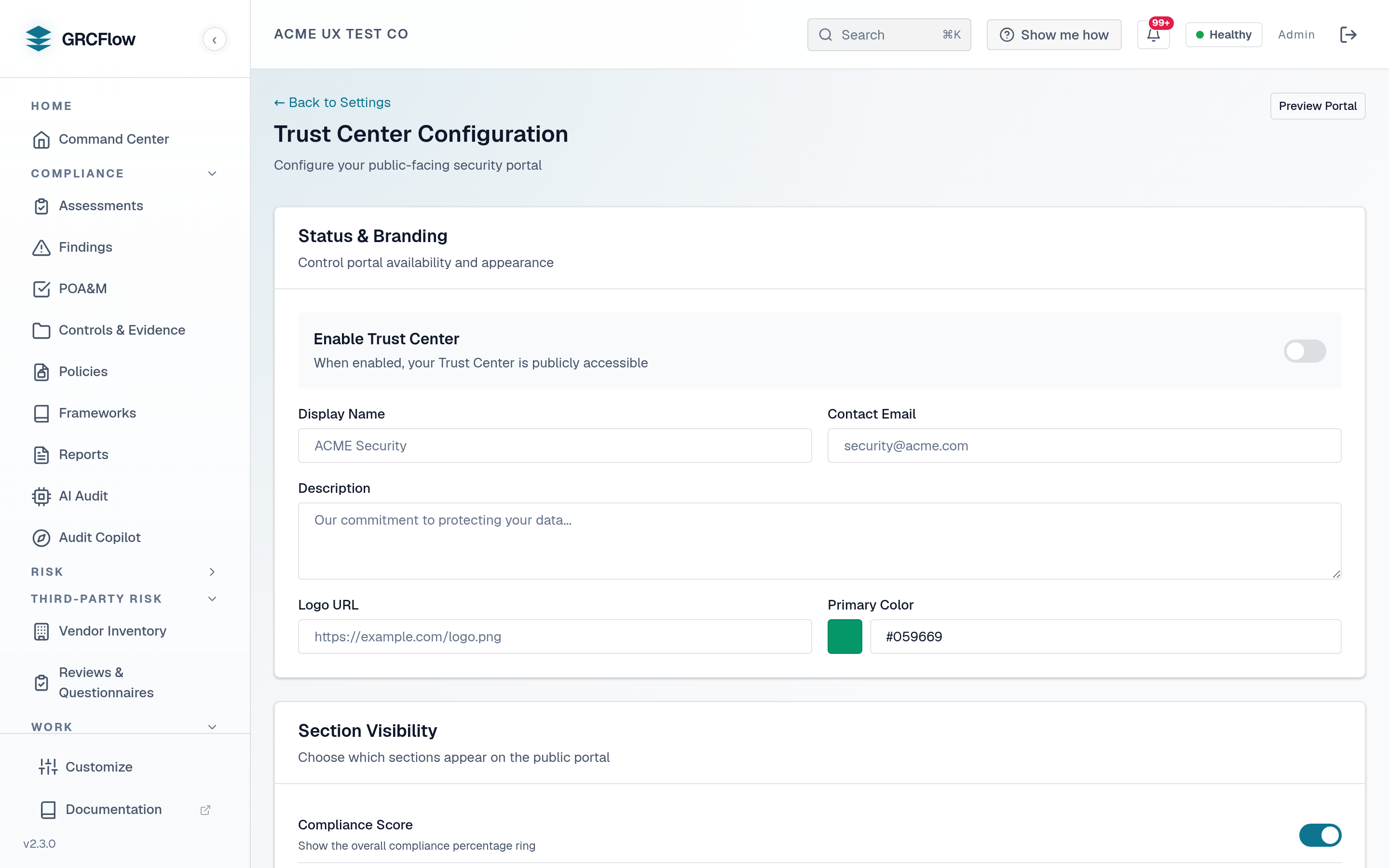
Configure the public Trust Center portal that prospects and customers can access to view your security posture.
Configuration Options
- Branding — Logo, company name, description.
- Sections — Toggle visibility of certifications, documents, and compliance status.
- Certifications — Add SOC 2, ISO 27001, and other certifications with dates.
- Documents — Upload security whitepapers, policies, and questionnaire responses.
- Access Requests — Review and approve/deny document access requests.
Public portal URL: https://your-domain/trust-center/your-org-slug
File upload
You can attach a real file to a certification or document entry instead of just a name. From the admin, upload the file and the platform stores it in object storage under an org-scoped key (trust-center/{org_id}/<uuid>-<filename>), returning a document_key that you then save onto the certification/document entry.
The upload endpoint is:
Constraints enforced server-side:
- Allowed file types: PDF, DOCX, PNG.
- Maximum size: 50 MB.
- Requires the org-configure permission.
A successful response returns document_key, filename, content_type, and size. Persist the document_key on the entry so the portal can resolve a download URL for it later.
NDA-gated presigned download
Whether a document is downloadable directly from the public portal depends on its NDA flag:
- Non-NDA documents with a stored
document_keyget a short-lived presigned download URL generated automatically and embedded in the public portal payload — anyone viewing the Trust Center can download them. - NDA-gated documents never expose a download URL on the public payload. Their
download_urlisnulluntil access is explicitly approved.
To obtain an NDA-gated file, a visitor submits an access request (accepting the NDA). An admin then approves it:
On approval the platform resolves the document key, generates a presigned download URL valid for expires_in_hours (default 168 hours / 7 days), and records download_expires_at on the request. The URL is returned to the admin in the approve response — that is how it reaches the requester, so send it to them yourself. The platform does not email the requester: approval writes an EMAIL_LOGGED trust_center_access_granted entry to the structured log and sends nothing. Approval is idempotent — a request that is not in the pending state is returned as-is without re-issuing a link. Deny marks the request denied with an optional reason and issues no link.
Object storage prerequisite (R2 / MinIO)
File upload and presigned download require an S3-compatible object store to be configured. In production this is Cloudflare R2; for local or self-hosted deployments any S3-compatible store such as MinIO works. Set these environment variables on the backend:
| Variable | Purpose |
|---|---|
R2_ENDPOINT_URL |
S3/R2 endpoint URL (e.g. your MinIO URL, or leave blank for R2 with CF_ACCOUNT_ID). |
R2_ACCESS_KEY_ID |
Access key ID. |
R2_SECRET_ACCESS_KEY |
Secret access key. |
R2_BUCKET_NAME |
Bucket name (default sovereign-evidence). |
CF_ACCOUNT_ID |
Cloudflare account ID — used to derive the R2 endpoint when R2_ENDPOINT_URL is not set. |
If object storage is not configured, upload returns 503 "Object storage is not configured. File uploads are unavailable." and the public portal simply omits download URLs (the rest of the Trust Center still renders normally).