Dashboard
Path: /
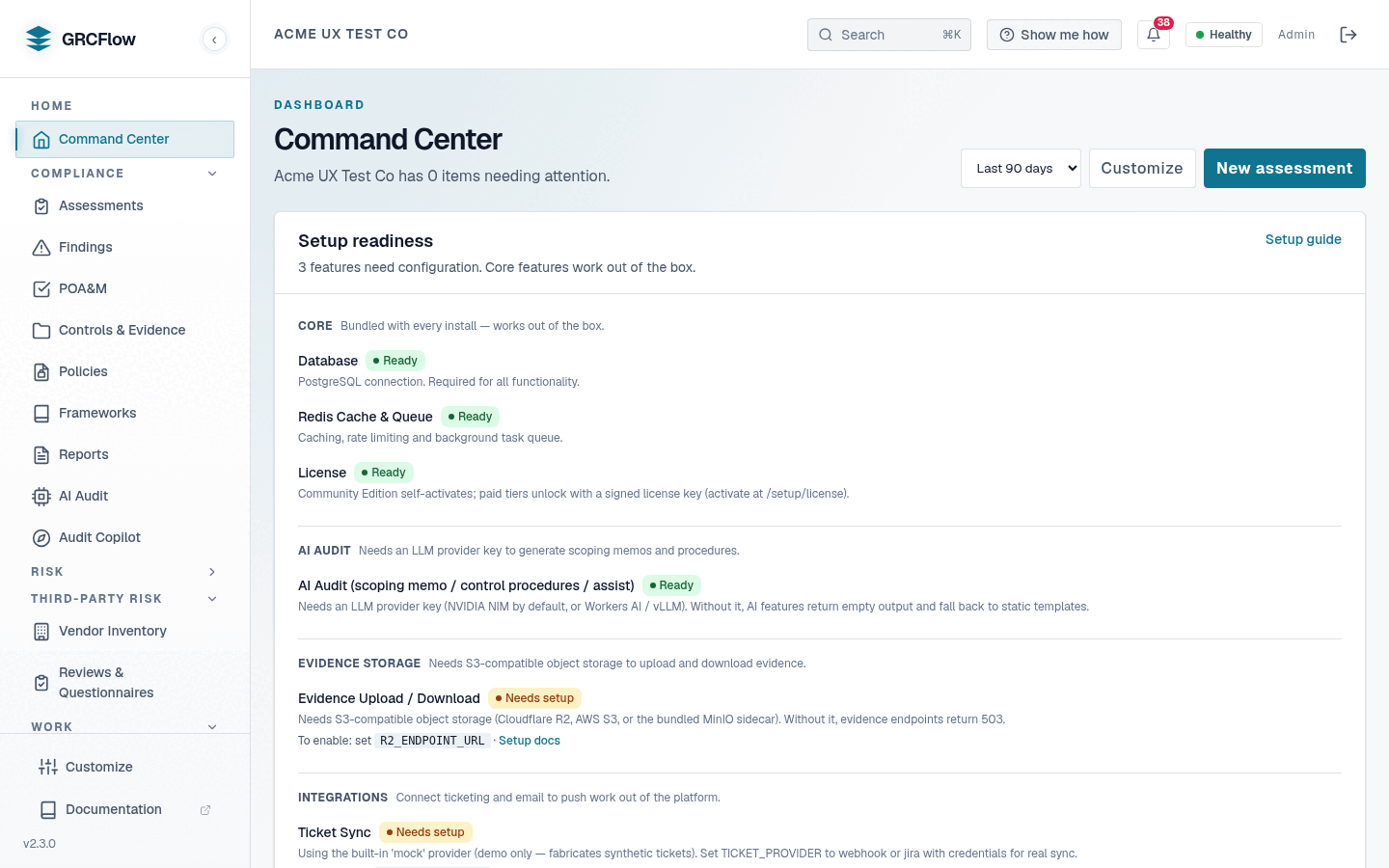
The dashboard is the landing page after login. It provides a high-level overview of your organization's compliance posture.
Key Elements
- Compliance Score — Percentage of controls passing across all active frameworks. A low score (red) means many controls need attention.
- Active Assessments — Number of compliance assessments currently in progress or completed.
- Open Findings — Total findings from assessments that have not been remediated.
- Critical Issues — Count of findings marked critical severity that need immediate action.
- Recent Assessments — Quick list showing the latest assessments with their status (Completed, Pending, In Progress).
- Critical Findings — Highlights any high-priority findings. "No critical findings" with "Great job!" means you're clear.
Due & Past Due widget
At the top of the dashboard, the Due & Past Due widget is a dense triage list of recurring control tests, ordered so the most urgent work is the first thing you see. The design philosophy is deliberate: a list beats a calendar for "what do I need to do right now." A separate Calendar view remains available when you need the month-grid layout.
The widget is backed by the GET /orgs/{org_id}/schedule/due-and-overdue endpoint, which pre-bucketizes every active control schedule into three time bands relative to today (UTC):
| Bucket | Color | Definition |
|---|---|---|
| Past due | Red | next_run < today − grace_period_days. Overdue even after the grace window. |
| In grace (10-day) | Amber | today − grace_period_days <= next_run < today. Overdue, but still inside the grace window. |
| Due soon (next 14 days) | Neutral | today <= next_run <= today + days_ahead. Coming up. |
Each row shows the control name, framework, a cadence badge, the due date, and the number of days overdue or remaining. Anything beyond the forward horizon (and not overdue) is excluded so the list stays focused on actionable items.
The 10-day grace window
The grace period (grace_period_days, default 10) recognizes that a control test landing a few days late is not the same as one that is genuinely abandoned. Items in the grace window are flagged amber rather than red, separating "slightly behind" from "truly past due" so you can prioritize the items that actually represent a compliance gap.
The forward horizon (days_ahead, default 14) controls how far ahead the "Due soon" bucket looks. Both are tunable on the endpoint:
Cadence toggle
A row of tabs above the list — All · Daily · Weekly · Monthly · Quarterly · Annual — filters the buckets to a single testing cadence. Selecting a tab re-requests the endpoint with an optional cadence filter; the All tab sends no filter and shows every frequency. Use it to answer questions like "which quarterly controls am I behind on?" without the daily noise.
List vs. calendar
The widget intentionally renders a flat, scannable list rather than a grid. When you do want the calendar layout — to see clustering across a month or plan around a date — open the dedicated Calendar view, which computes its events from the same schedule data and the same grace defaults, so the two stay consistent.
Finding status breakdown chart
Below the triage list, the Finding status chart is a dependency-free SVG donut that summarizes your findings by disposition into three triage segments:
- Open (red) — failed controls awaiting remediation.
- Closed (green) — passing / closed controls.
- Pending review — findings still in review.
The center of the donut shows the total count, and a legend lists each segment with its absolute count and percentage. The chart renders cleanly in both light and dark mode (colors resolve from the global theme tokens). When there is nothing to show, it falls back to an all-zero empty state rather than a broken graphic.
What To Do Here
- Clear the Past due bucket first, then the In grace items before they slip past the grace window.
- Use the cadence toggle to focus a review (e.g. quarterly controls before an audit).
- Review the compliance score. If it's below your target, click "View all" on Recent Assessments to investigate.
- Check the Finding status donut for the open-vs-closed balance and the size of your pending-review backlog.