Evidence
Path: /evidence
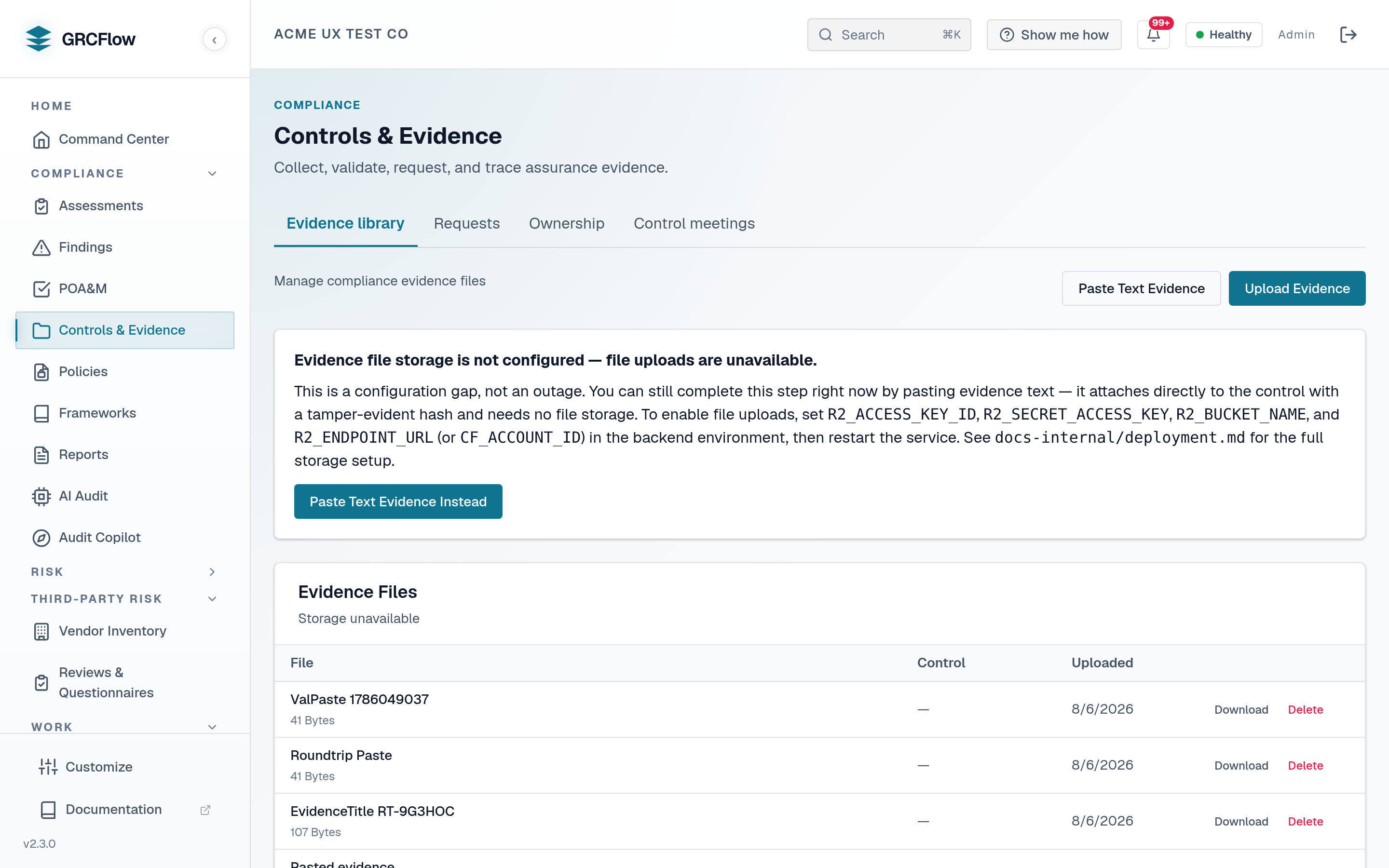
The evidence repository stores documents, screenshots, and files that prove your controls are working. Evidence is stored in S3-compatible object storage (Cloudflare R2, AWS S3, or a self-hosted MinIO).
Prerequisites — object storage required
Evidence upload and download are not turnkey out of the box. They need an S3-compatible object store that you supply. A stock install ships with object storage unset, so the demo's all-green evidence repository reflects its pre-wired storage, not a default install.
To enable, configure one of:
- Cloudflare R2 / AWS S3 / any S3-compatible endpoint — set
R2_ENDPOINT_URL(orCF_ACCOUNT_ID),R2_ACCESS_KEY_ID, andR2_SECRET_ACCESS_KEY(plus the bucket), or - The bundled MinIO sidecar — enable the optional
minioservice in the Compose stack and point the same storage settings at it.
Without object storage configured, every upload, download, and listing call returns HTTP 503 — "Evidence storage service is unavailable"; the rest of the platform keeps working. The in-app Setup readiness checklist on the Dashboard flags Evidence Storage as Needs setup with the key to set. See Admin Settings to configure.
Key Elements
- Upload button — Upload new evidence files (PDFs, screenshots, config exports).
- Evidence list — Shows filename, type, upload date, linked controls, and verification status.
- Verification — Evidence can be cryptographically verified using SHA-256 hashes.
How to Upload Evidence
- Click Upload.
- Select files from your computer (up to 100MB per file).
- Tag the evidence with the relevant control IDs.
- Add a description explaining what this evidence proves.
Note
Evidence storage requires S3-compatible object storage (R2/S3 or the MinIO sidecar) — see the prerequisites callout at the top of this page. Until it is configured, these upload/download actions return HTTP 503.