Reports
Path: /reports
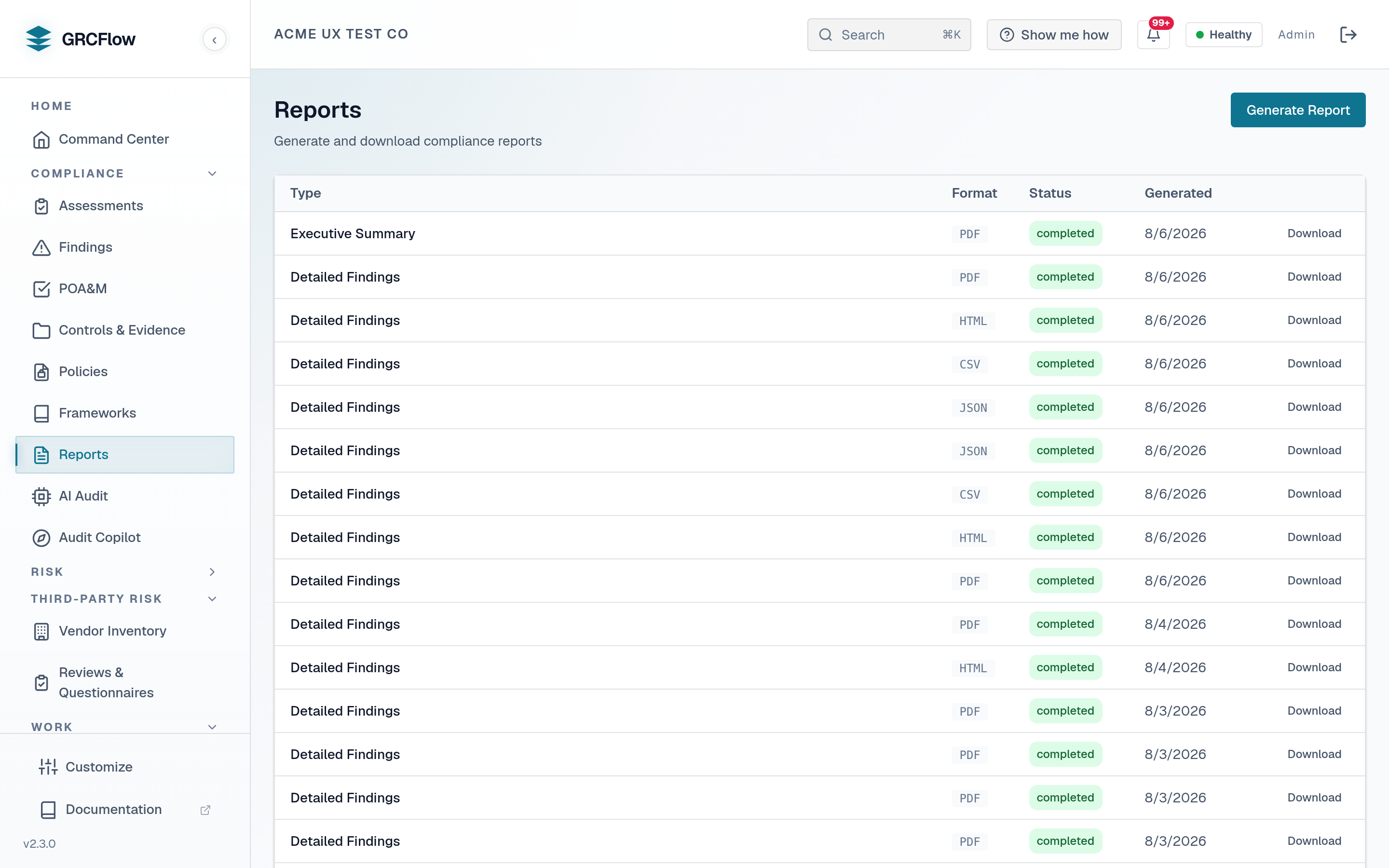
Generate compliance reports in PDF, HTML, CSV, Excel (XLSX), or JSON from the Reports page. Reports summarize your assessment results, findings, and compliance posture.
Available Report Types
- Executive Summary - High-level overview for leadership.
- Detailed Findings - Full control-by-control breakdown.
- Gap Analysis - Shows where controls are failing.
- Remediation Plan - Lists all open findings with remediation steps.
- Evidence Package - Evidence bundle for an assessment.
- Statement of Applicability - every control of the framework with its applicability and justification (below).
- System Security Plan - SSP artifact (below).
- POA&M - Plan of Action & Milestones.
- Board Pack - Executive-grade pack for board reporting (below).
- PCI DSS SAQ Report, PCI DSS ROC Assessment Report and PCI DSS AOC Data Sheet - PCI DSS assessments only (below).
The Board Pack
The board pack condenses the whole tenant into the report a board actually reads, built entirely from org-scoped real data:
- Compliance posture - from the focal assessment you select.
- Framework readiness - a readiness % per framework, computed from the latest COMPLETED assessment of each framework (frameworks never assessed are not given a number).
- Top risks - register entries ranked by residual score. A risk carries a FAIR ALE figure only when a completed FAIR simulation exists for it - the number is never fabricated.
- Open gaps / POA&M rollup - outstanding remediation.
Sections with no data render an honest "none recorded" line instead of being silently dropped or padded. The board pack renders to every format.
What Every Report Carries
Every report, in every format, identifies whose it is: your organization's
name, the assessment, the framework and version, the examination
period (when set on the assessment) and the dates the assessment ran, when
the report was generated (UTC) and by whom. In a PDF this is the
header and every page footer; in HTML the title, header and footer; in CSV
the first rows (followed by a blank row, then the data); in XLSX the first
sheet, "Report". "Generated by GRCFlow <version>" appears only as a small
footer note.
Statuses, severities, risk levels and dispositions are printed as words
("Pass", "Manual review required", "Not applicable"). JSON keeps the raw enum
values for machine consumers. In CSV exports, any cell whose text begins with
=, +, - or @ is written with a leading apostrophe so a spreadsheet shows
it as literal text instead of running it as a formula. In XLSX exports such
text is stored as a text cell; reports never contain formulas.
"Generated by" is the person who generated the report. It is stored with the report, so a file that has to be rebuilt later names the same person. Reports produced by a scheduled job say "Scheduled job". A report generated before 2.3.1 whose file is rebuilt says "Not recorded", because the person was not stored then.
Statement of Applicability
The statement lists every control of the assessed framework. The Justification column prints only what was recorded:
- a control with a Not applicable result shows the justification entered with that result;
- a control scoped out of the assessment shows the reason entered with the scoping decision, and is listed as not applicable;
- an applicable control has no stored reason for its inclusion, so the cell reads "No justification recorded". Add your inclusion rationale to the statement before it is submitted to a certification body.
The summary counts the applicable and the excluded controls that have no recorded justification.
System Security Plan
The plan is structured per NIST SP 800-18 Rev. 1 for every framework (a note under the title says so). CMMC and NIST SP 800-171 plans keep their CUI framing inside the same structure. The PDF and HTML print these numbered sections in order; the CSV, XLSX and JSON carry the same fields.
| # | Section | Where the content comes from |
|---|---|---|
| 1 | Information System Name/Title | System profile (name, unique identifier) |
| 2 | Information System Categorization | System profile (FIPS 199 impact for confidentiality, integrity, availability) and information types |
| 3 | Information System Owner | System profile (name, title, organization, contact) |
| 4 | Authorizing Official | System profile |
| 5 | Other Designated Contacts | System profile |
| 6 | Assignment of Security Responsibility | System profile (security officer) |
| 7 | Information System Operational Status | System profile (Operational, Under Development, Major Modification) |
| 8 | Information System Type | System profile (Major Application, General Support System) |
| 9 | General System Description/Purpose | System profile |
| 10 | System Environment | System profile (technical environment, system boundary, data flow) |
| 11 | System Interconnections/Information Sharing | System profile (one row per connected system) |
| 12 | Related Laws/Regulations/Policies | System profile |
| 13 | Minimum Security Controls | The assessment: every framework requirement, grouped by family |
| 14 | Information System Security Plan Completion Date | System profile |
| 15 | Information System Security Plan Approval Date | System profile (date and approver) |
The overall FIPS 199 category in section 2 is always computed: it is the highest of the three impact levels (the high-water mark), and it stays "TBD (to be completed)" until all three are set. It cannot be typed.
System profile
Open the profile with the System profile button on the Reports page (visible to users who can configure the organization), fill in the fields, and save. Enter information types and laws one per line. Any field you leave blank prints as "TBD (to be completed)" in the plan, and an empty contact or interconnection list says that none are recorded, so complete the profile before you hand the SSP to an auditor. Values saved before the 800-18 layout (for example a system owner entered as a single line of text) still print.
The same data is available through the API: GET and PUT
/api/v1/orgs/{org_id}/system-profile. PUT changes only the fields you send,
needs the organization-configure permission, and is recorded in the audit log.
Section 13: what each control shows
The summary and the body use the same numbers. "Requirements Listed (framework)" is the number of requirements in the plan; "Controls in Scope" and "Controls Evaluated" are the assessment's scope and how much of it has a result; then one row per status (the status rows add up to the requirements listed). The implementation rate is the share of evaluated, applicable requirements that passed.
Each control prints:
- Implementation status, derived only from the recorded result: a passed control is "Implemented"; a failed control or one awaiting manual review is "Planned"; "Not applicable" and "Not assessed" (no result yet) are shown as such. "Partially implemented" is never shown because no recorded field supports it.
- Responsible: the RACI responsible (or accountable) owner assigned to the control, otherwise the control finding's own owner, otherwise the honest placeholder (the ISSO role for CMMC / NIST SP 800-171 plans, or "TBD (control owner to be assigned)" for other frameworks).
- Control origination: "Common" when the control's result is inherited from another of your assessments through cross-framework inheritance (the source control is named). Controls without an inheritance record print "Not designated"; the plan never assumes "System-specific".
- The implementation description, and the remediation text when there is one.
Gap Analysis
Each category has a table (control, status, AI assessment). Below the tables, "Gap Detail" prints the evidence summary, the AI review (labeled as such, with the model) and the remediation text for each control, in full. The CSV and XLSX hold the same text in columns.
Languages and Fonts in PDF Reports
HTML, CSV, XLSX and JSON reports contain all text as entered. PDF reports can only print what the fonts installed on the server cover:
- Latin, Greek, Cyrillic and most European scripts: printed (DejaVu Sans).
- Chinese, Japanese, Korean: printed. The backend image includes the WenQuanYi Micro Hei font and its glyphs are embedded in the PDF, so the file looks the same in every viewer. The font has one style: CJK text is not bold or italic, and ideographs use the font's Chinese glyph shapes, also in Japanese and Korean text.
- If you run the backend without that font (a custom image), CJK text falls back to the PDF standard CJK fonts. These are not embedded: the text is in the file, but it is displayed only by a viewer that has its own CJK fonts.
- Arabic and Hebrew: the characters are printed, but in left-to-right order and without joining. Use the HTML format for right-to-left text.
- Other scripts (for example Thai or Devanagari) and most emoji: no installed font covers them. The text is replaced by [text not printable in PDF] and a note under the report header says so. Use the HTML, CSV, XLSX or JSON format for these.
Overall compliance status
Each report states one overall status, decided by a single rule:
- Non-Compliant - at least one in-scope control failed.
- Compliant - every in-scope control passed, with none failing, awaiting review, or unevaluated. Controls recorded not applicable are outside scope.
- Review required - N control(s) awaiting review - no control failed, but some are still awaiting review.
- Not determined - ... - nothing failed and nothing is awaiting review, but in-scope controls are not yet evaluated.
"Top Compliance Gaps" and the board pack's open-gap count list failed controls only; controls awaiting review (including those with no evidence) and AI-identified potential gaps are reported under their own headings.
Where the POA&M and Remediation Plan Get Their Data
- The POA&M report is built from your stored POA&M items for the assessment - their current status, risk level, point of contact, dates and milestones, exactly as edited. A failed or awaiting-review control that has no POA&M item is still listed, labeled "Not yet tracked", with its risk level, owner and date taken from the finding; no status or milestones are invented for it. An open item raised from another assessment of the same framework for the same control counts as tracking it, and is labeled as such.
- The Remediation Plan prints each finding's remediation owner, due date and status. Where the finding has none it uses the control's POA&M item; where there is nothing it prints "Not assigned" / "Not set".
PCI DSS documents
Three report types exist only for PCI DSS assessments and are offered in the Generate Report dialog when a PCI DSS assessment is selected:
- PCI DSS SAQ Report - the response to every requirement of the chosen SAQ type, with the appendices and the action plan.
- PCI DSS ROC Assessment Report - per requirement, the response and the evidence and notes of its parent control.
- PCI DSS AOC Data Sheet - the data needed to complete the Attestation of Compliance form.
They are built from the assessment's PCI validation section (validation type, entity profile and per-requirement responses), not from the control findings, so the assessment needs a validation type but not evaluated controls. None is a PCI SSC form or template. The SAQ report (SAQ engagements) and the AOC data sheet use this product's own layout. The ROC assessment report (ROC engagements) follows the section structure and numbering of the official ROC Template so it can be transcribed section by section; the official template remains the document of record that a QSA completes. While the PCI validation section still lists open items the document is a draft with a banner. Requesting one for an assessment of another framework, or before a validation type is chosen, is refused with a message that says why. See PCI DSS engagements.
If a Report Fails
Generation either produces a file or tells you it failed: you get an error with the reason, and the attempt is listed as Failed with that reason and no Download button. Generate it again (or choose another format); if it keeps failing, give your administrator the reference in the message.
How to Generate a Report
- Click Generate Report.
- Select the report type and output format (PDF, HTML, CSV, Excel (XLSX), JSON).
- Choose which assessment(s) to include.
- Click Generate. The report will appear in the list when ready.
- Click Download to save the file.
Deleting a Report
Deleting a report removes its entry from the list and its file from storage, including every stored version of the file. The deletion is recorded in the Audit Trail.